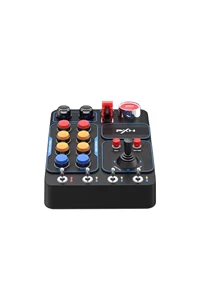
PXN CB1 Control Box
Controls within easy reach, if the setup calls for them
Score: 8/10
Images and videos
At a glance
We liked
- A varied set of controls including push-button encoders, a joystick, buttons, and switches
- Direct USB connection to a PC without requiring proprietary software
- Clamp, screws, and both cables included
- 100 × 100 mm VESA mounting for a flexible setup
We liked less
- Fixed labels that don’t reflect custom bindings
- Buttons that feel more ordinary than the metal switches
- Lighting that doesn’t automatically reflect what’s happening in the game
- Less useful alongside a wheel that already has plenty of controls
 By Farrel Grimwood · published · 5 min read
Contents
Even a well-equipped wheel can struggle to keep every sim control within reach. Between the headlights, wipers, ignition, radio, and car settings, the keyboard often ends up staying next to the wheelbase. The PXN CB1 Control Box brings those functions together on a physical panel of buttons, knobs, and switches, saving players another set of key combinations to memorize.
The design makes particular sense for truck simulators and farming games, and it has its uses in racing too. With a VD6 Bundle, whose wheel already has plenty of controls, the purchase takes a little more justification. Does the box actually simplify the setup, or does it mostly add another good-looking accessory to the desk?
Thirty functions, fewer buttons
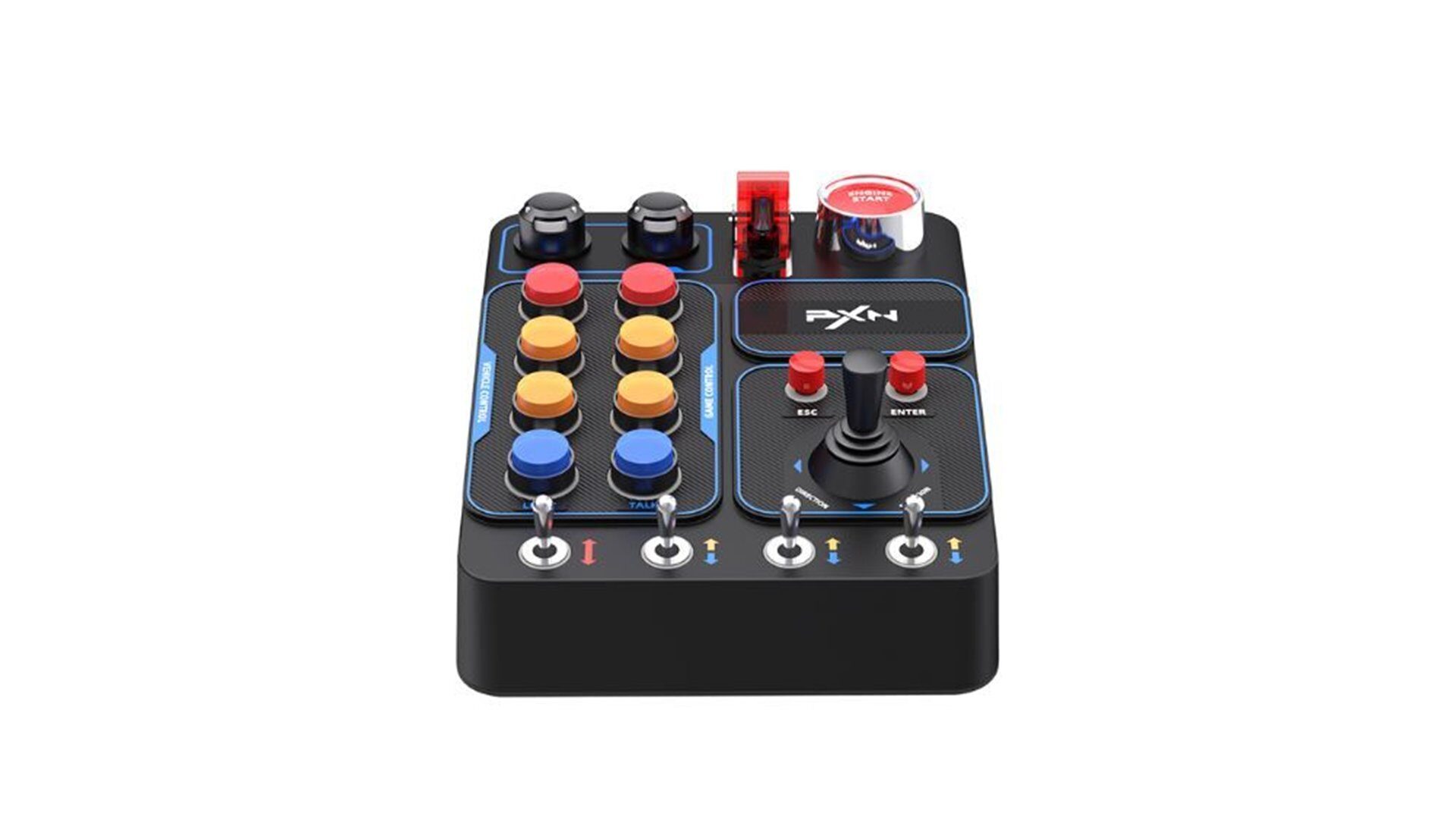
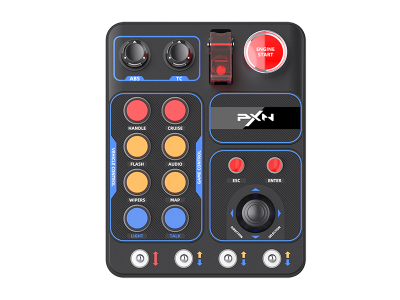
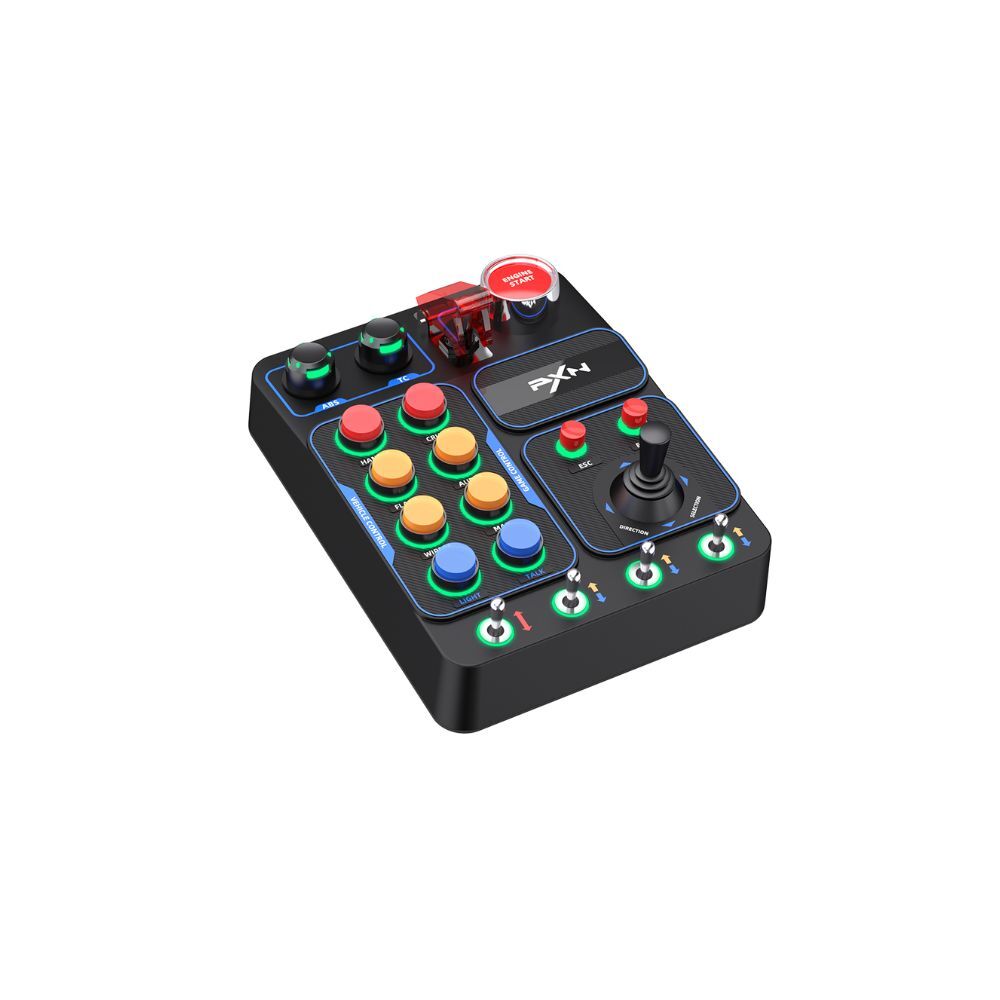
The advertised count covers all the available inputs. The panel includes two rotary encoders that double as push buttons, eight large buttons, a start control, a guarded switch, a directional joystick, and four small metal toggle switches. ESC and ENTER buttons round out the panel for navigation. Turns, presses, and directional inputs all count toward the advertised total.
A dial suits a setting that goes up or down in steps. A button triggers a one-off action. A switch that stays in position gives a different kind of physical confirmation than a push button that springs straight back. The CB1 offers several ways to operate its controls, and their shapes are distinct enough to help locate the right one without scanning the whole panel.
The two encoders are marked ABS and TC, for anti-lock braking and traction control. The labels suggest uses for the dials, and the bindings are set in compatible games. A control on the panel can only adjust a setting that the car or sim already offers.
The joystick is mainly useful for navigating menus and handling directional inputs. It serves neither as a gear shifter nor as an analog steering control. By default, the ESC and ENTER buttons act like the corresponding keyboard keys. That mode can be disabled so the buttons can be assigned to other functions. That bit of flexibility keeps two slots from going to waste in a setup that has no use for those keys.
Windows PC only
The rear USB-C port connects the box directly to the computer. A USB-C to USB-A cable and a USB-C to USB-C cable are included, so either type of port can be used. The same connection powers the box. There are no batteries to charge or wireless connections to set up.
Windows recognizes the CB1 as a game controller without requiring a PXN app to get started. The inputs still need to be assigned in the sim. That simplicity is a plus for a secondary accessory. The panel can start doing its job without becoming another device full of settings to manage.
Official support is limited to Windows PCs. The CB1 has no Xbox or PlayStation support, even with a wheel from the same brand. In a setup built around the VD6 Bundle, the documented method is to plug the CB1 into the PC over a separate USB connection. The accessory ports on the wheelbase are for dedicated peripherals.
The game also has to accept inputs from the box alongside the wheel. Windows can recognize the CB1 even when a game leaves the inputs unassigned. A PC can accommodate several peripherals, though getting them set up sometimes takes a few minutes in the options menu. Once configured, the CB1 makes functions easier to reach. The initial setup still has to happen.
Making room for the panel
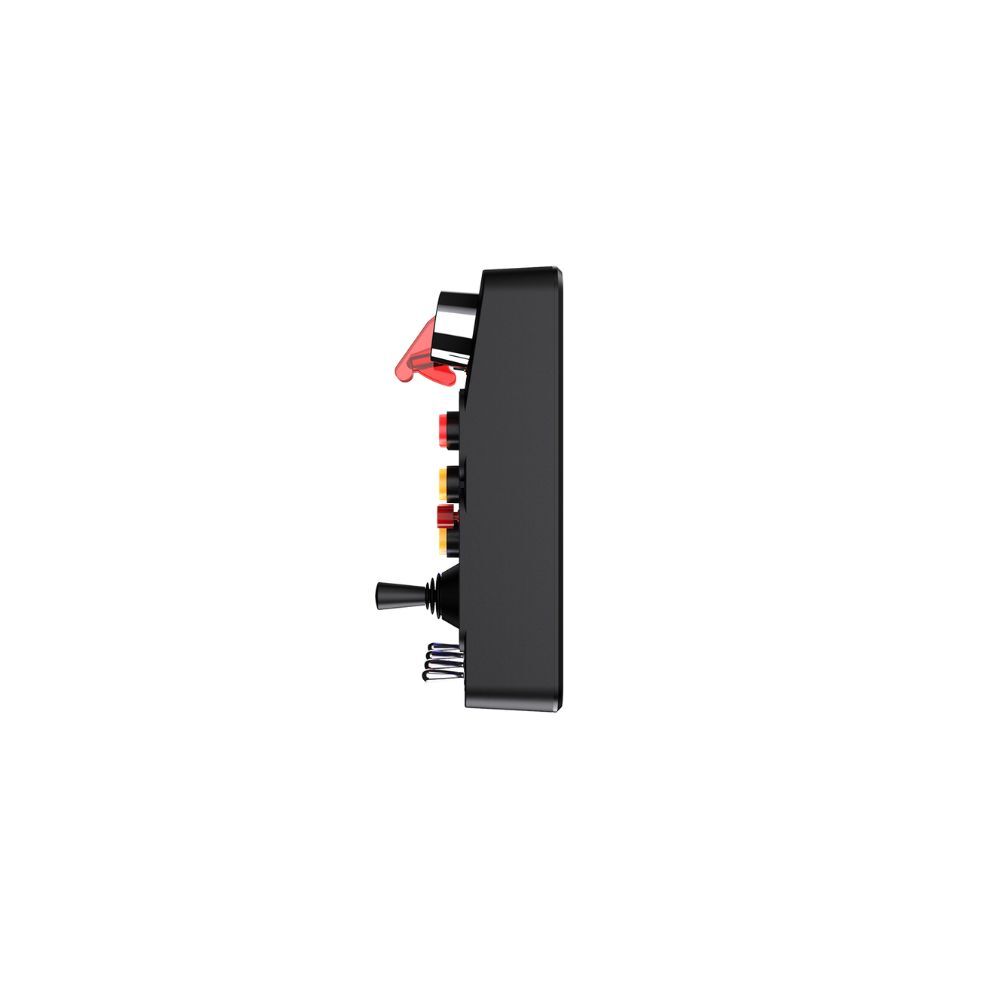
The box measures about 18.4 cm high, 14.4 cm wide, and 7.85 cm deep, with a stated weight of 540 g. It’s compact beside a wheelbase, though the protruding controls and rear cable need some clearance. The switches need to be within reach without getting in the way as the wheel turns.
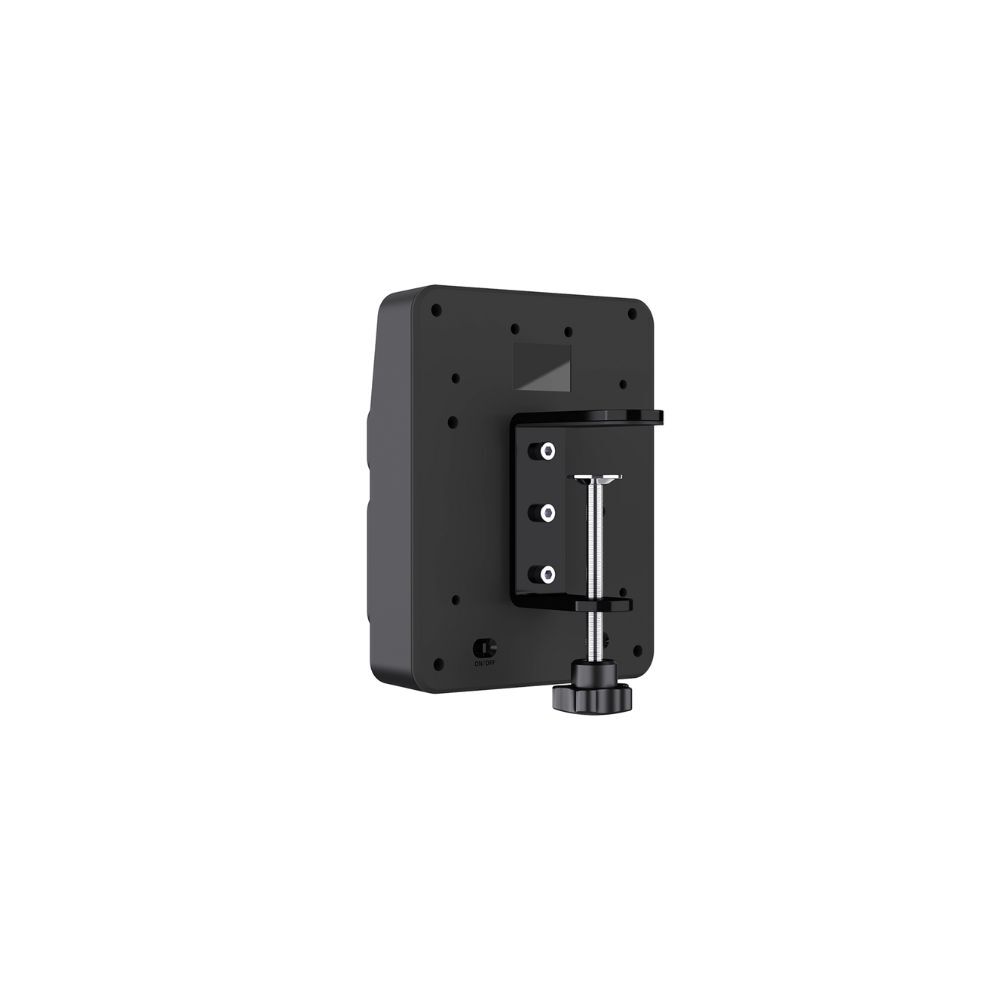
The desk clamp comes with three M5 screws and a hex key. There’s a little assembly before the clamp can be tightened onto the desktop. The included hardware saves a separate purchase and lets the box sit next to the wheelbase. Even a box this light needs to be secured. Flipping a switch or pushing the joystick on a loose panel takes much of the point out of having a physical control.
The rear holes follow the 100 × 100 mm VESA pattern, opening up options such as a mounting arm or a compatible bracket. That makes it a good fit for a permanent setup. Position and angle depend on the mount, and the included clamp offers less freedom than an articulated arm.
The housing is made of ABS plastic with a carbon-fiber-look finish. The carbon pattern is cosmetic, and the shell is plastic throughout. The metal switches feel more convincing than the large buttons, which have a more ordinary feel. The build is in line with the price, and there’s little basis for expecting professional-grade durability.
What the lights can tell you
The lighting can be adjusted directly on the CB1. Holding the HANDLE button while turning the ABS encoder cycles through seven colors, while the other encoder adjusts the brightness. The rear switch turns the lights off. The controls are easy to understand, and dimming an overly bright backlight takes no software.
The lighting makes the panel easier to find in a dark room and adds to its dashboard look. It provides no telemetry readout. Neither the position of a switch nor the state of its light automatically follows what’s happening in the game. A lit control alone can’t confirm that the virtual headlights or ignition are on.
The fixed labels are another limitation. They give the panel a clean look and are easy to read at a glance, but they stop matching what happens on screen as soon as a button is reassigned. A button marked for the wipers can be mapped to something else, and the printed label stays the same. There’s plenty of freedom to change what the controls do and much less to change how they’re labeled.
A good match for the VD6?
The W AS included with the VD6 Bundle already has buttons, a D-pad, two encoders, and four paddles. There’s already plenty to work with. The CB1’s value lies in how it lets those functions be divided up. Adjustments essential to driving stay on the wheel, while secondary functions get a fixed spot beside the wheelbase.
That separation matters when the wheel turns a lot. A stationary panel always faces the same way, making a less frequently used control easier to find. Turning knobs and flipping switches can also be more practical than remembering a series of button combinations. In a truck simulator or farming game, there are enough functions to assign for that advantage to make a real difference.
For a setup used mainly for racing where the W AS already covers the essentials, the gains are smaller. The CB1 offers no improvement to force feedback, braking, or steering precision. It takes up space and needs another USB port. The accessory earns its keep when the keyboard regularly comes into play during a session. Otherwise, the extra controls are mostly a convenience that goes unused.
Verdict
A good add-on when there’s a need for it
8/10
The PXN CB1 Control Box does its job well. It brings together distinct physical controls that are easy to identify and can be used without proprietary software. The encoders, joystick, and switches give it more range than a simple row of buttons. The clamp, two cables, and VESA mount also give it real flexibility in how it can be installed. For sims with a lot of functions, there’s a clear benefit.
With the VD6 Bundle, how much it adds depends on how the setup is used. The W AS already has plenty of controls. The CB1 mainly takes secondary functions off the wheel and gives them a fixed place beside the wheelbase. Fixed labels, lighting that doesn’t respond to telemetry, and uneven button quality limit customization. It’s a well-designed accessory for the price. Buy it to solve a specific problem. Filling an empty spot in the cockpit is reason enough to leave it there.
Pros
- A varied set of controls including push-button encoders, a joystick, buttons, and switches
- Direct USB connection to a PC without requiring proprietary software
- Clamp, screws, and both cables included
- 100 × 100 mm VESA mounting for a flexible setup
- Lighting adjustable directly on the box
- A useful add-on for sims with lots of functions to assign
Cons
- Fixed labels that don’t reflect custom bindings
- Buttons that feel more ordinary than the metal switches
- Lighting that doesn’t automatically reflect what’s happening in the game
- Less useful alongside a wheel that already has plenty of controls
- No official console support